What a first session covers
A first session covers the core workflow, which can be repeated with any track. By the end, you'll be able to:
- Import any song from your library, a file, or a link
- Isolate or mute any instrument to study it or play in its place
- Read the chords and key detected straight from the recording
- Shift the key to fit your voice or your instrument
- Slow down and loop the hard parts without changing pitch
- Lock in your timing with a smart metronome and a count-in
Pick your song
A session starts by loading a track into Moises. You can pull it in from your music library, drag and drop a file, or paste a link. On import, the track is analyzed and separated into individual parts automatically. Give it a few seconds to process, and the song is ready to go.
How to do it
- Tap the + Add button in the top-right corner.
- Choose a source: music library, a dragged-and-dropped file, or a pasted link.
- Wait a few seconds while it processes.
Why it matters
Every other step in this guide works from this one imported track: instrument separation, chords and key, speed control, and the metronome all read from it.
Learn more about
Isolate or mute an instrument
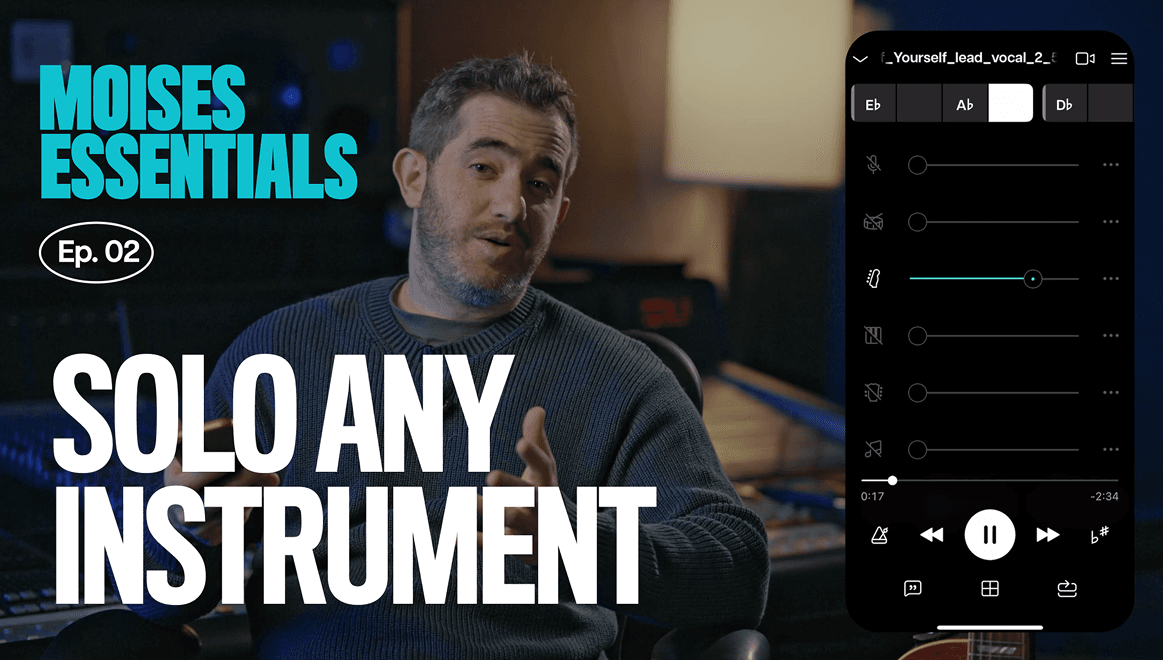
Once a song loads, Moises separates it into its individual instrument tracks, drums, bass, guitar, keys, and whatever else is in the mix, each with its own volume control. From here you can either solo an instrument to study it, or mute it to play in its place.
How it works
- Solo an instrument, like guitar, to hear it completely on its own. Details that used to melt into the mix become clear enough to work out every part.
- Mute that same instrument instead, and you're left with a backing track built from the real recording, minus the part you play.
Why it matters
Soloing isolates a part so you can study it. Muting removes it so you can perform it. Both come from the same separated track, and you can switch between them in the same session.
Learn more about these features
Read the chords and key
Moises detects the chords straight from the recording, not from a chord chart pulled online and laid on top. It's actively analyzing the track and updating the chords in real time, so what you see is what's actually playing, including a chord like a D diminished that might otherwise take a second to work out by ear. The key is shown right alongside it, so you always know what key you're in.
How to do it
- Watch the chords update in time as the song plays.
- Switch to the simplified chord view if you want fewer details while you're still learning the changes.
Why it matters
You're not guessing at chords by ear. And the simplified view means a beginner can follow along and learn the song even without knowing every chord.
Learn more about these features
Change the key
Using the plus and minus signs, you can shift the whole song up or down in pitch, and the chords update automatically to match. Nothing needs to be transposed in your head.
How to do it
- Vocalists can move the song into the key that actually fits their voice.
- Guitarists can land on a key with playable open chords instead of relying on barre chords.
- Producers can use the same control to change the overall vibe of a track.
Why it matters
A song that sits in a bad key for your voice or your instrument stops being a dead end. Shift it, and the chords come with it.
Learn more about this feature
Slow down and loop the hard part
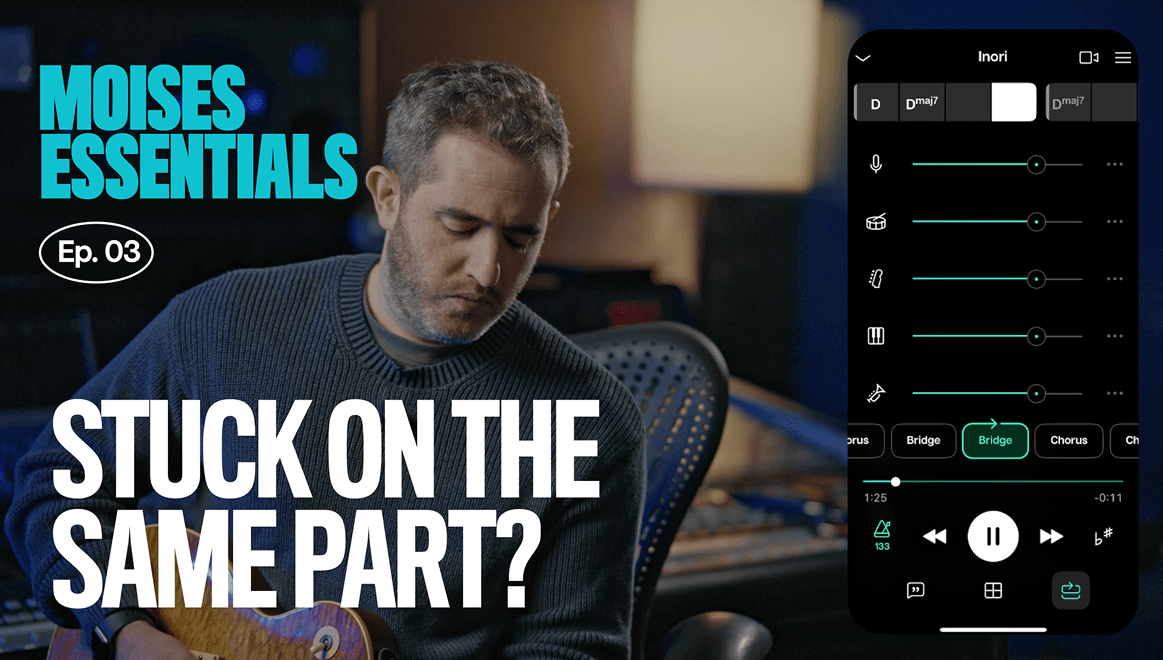
Open the speed control and use the plus and minus signs to change the tempo in real time. The pitch stays exactly where it was, only the speed changes, so a fast section becomes something you can actually follow. From there, use the loop function to pick the section you want and let it repeat, no more rewinding or scrubbing to find the same few bars over and over.
How to do it
- Bring the tempo down until the part is actually playable.
- Loop the section you want to drill and let it run.
- Once it feels good at that slower speed, bump the tempo up a few BPM at a time.
PRACTICE TIP, FROM THE VIDEO
Don't rush it. Get comfortable at around 70% speed before pushing up to full speed. Mistakes made at 70% come with you to 100% if you skip ahead too soon.
Learn more about this feature
Practice in time with a smart metronome
With the instruments separated, the key set, and the tempo where you want it, the last piece is locking in the rhythm. This isn't a steady, fixed click. It's built off the track itself, so if the song speeds up or slows down, the click follows it, giving you the actual feel of the music instead of a rigid grid. Add a count-in for a moment to settle before playback starts.
How to do it
- Turn on the metronome and let it follow the song's own tempo.
- Add a count-in so you have a beat before the track starts.
- Play along with the full track and the click first, then mute your own instrument for the real test, just you and the backing track.
Why it matters
This is what practicing with Moises actually feels like: playing along with the band, a click keeping your timing honest, and nothing in the way.
Learn more about this feature