ISOLATE
Hear the original vocal on its own
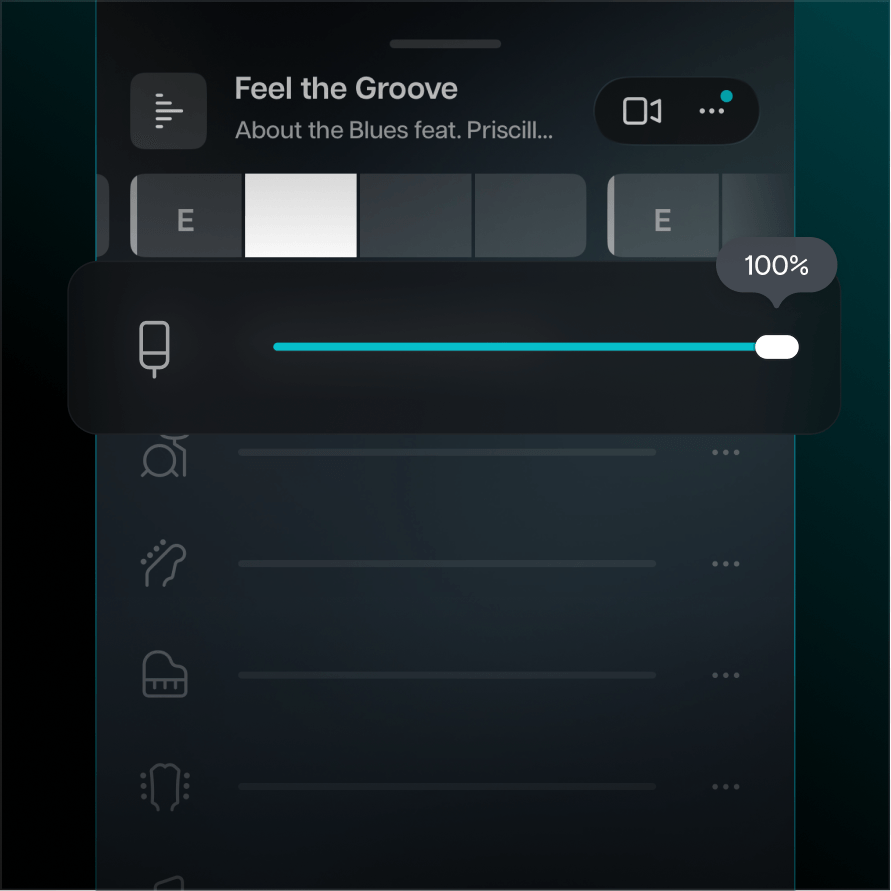
Solo the lead vocal to catch every breath, run, and phrasing choice. Then mute it and try it yourself.
Introducing Moises Studio: The simplest way to make music togetherIntroducing Moises Studio: The simplest way to make music together
VOCAL REMOVER
Upload a song, mute the original vocals, and sing over the recording. Shift the key and tempo to fit your voice, then take the track to practice, rehearsal, or the stage.


How it works
Upload an audio or video file from your device, or paste a link from cloud services or public URLs.
Moises separates the vocals from the instruments and puts each on its own track. Chords and tempo are detected at the same time.
Tap to turn the original vocals off and sing over the real recording.
Removing the vocals is the first step. From there, put the song in your key, study how the original singer phrased it, and take the track wherever you're singing next.
Solo the lead vocal to catch every breath, run, and phrasing choice. Then mute it and try it yourself.
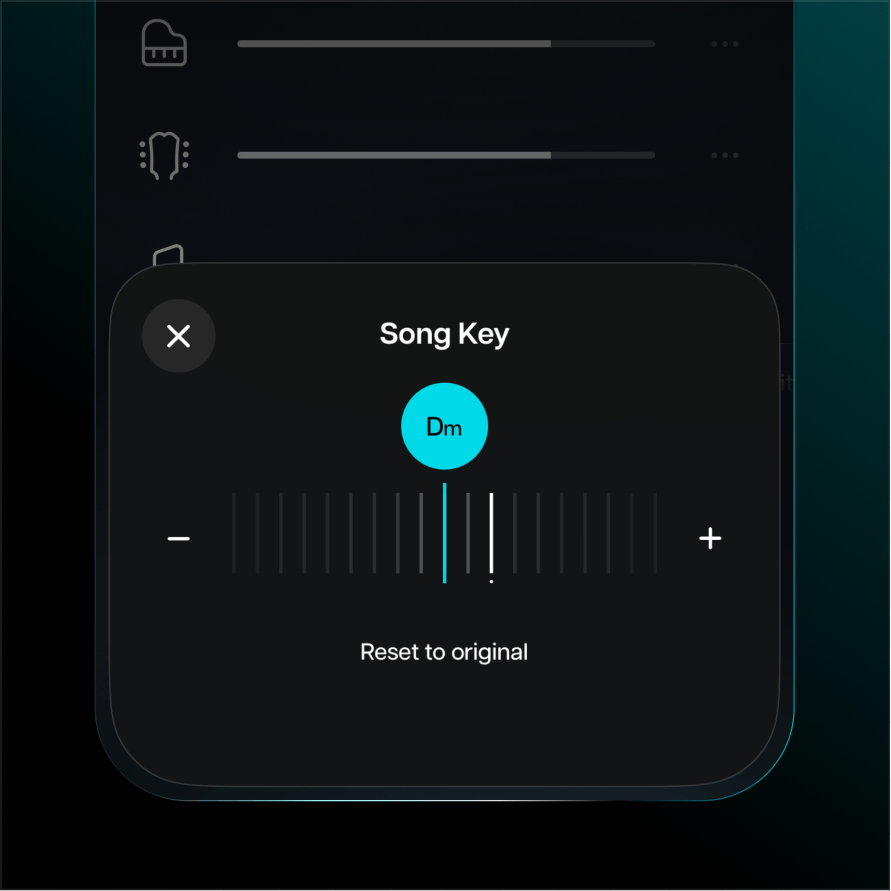
Change the key up or down until it sits in your range. Slow it down, without changing the pitch, to work through a tricky passage.
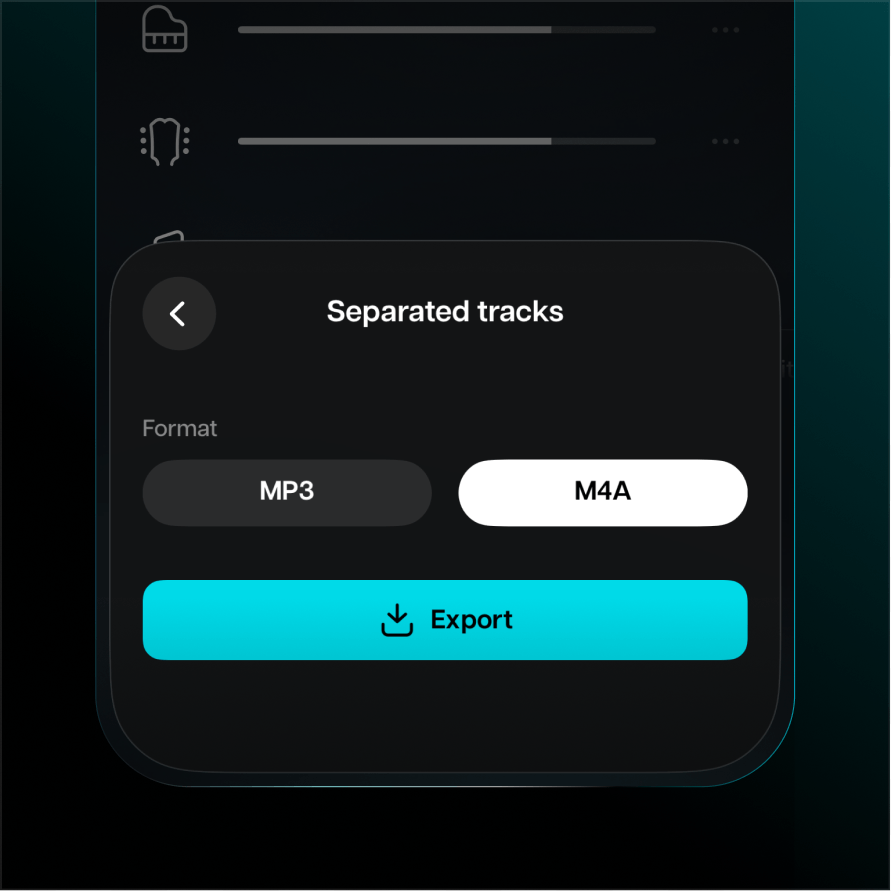
Download the vocals and instrumental as separate tracks, or as one mix with or without the vocals. Or play it right from your phone or laptop.
Why Moises
Plenty of sites will strip the vocals and hand you a file. Moises hands you the song itself: every part on its own fader, the chords on screen, and the controls to learn it at your pace.
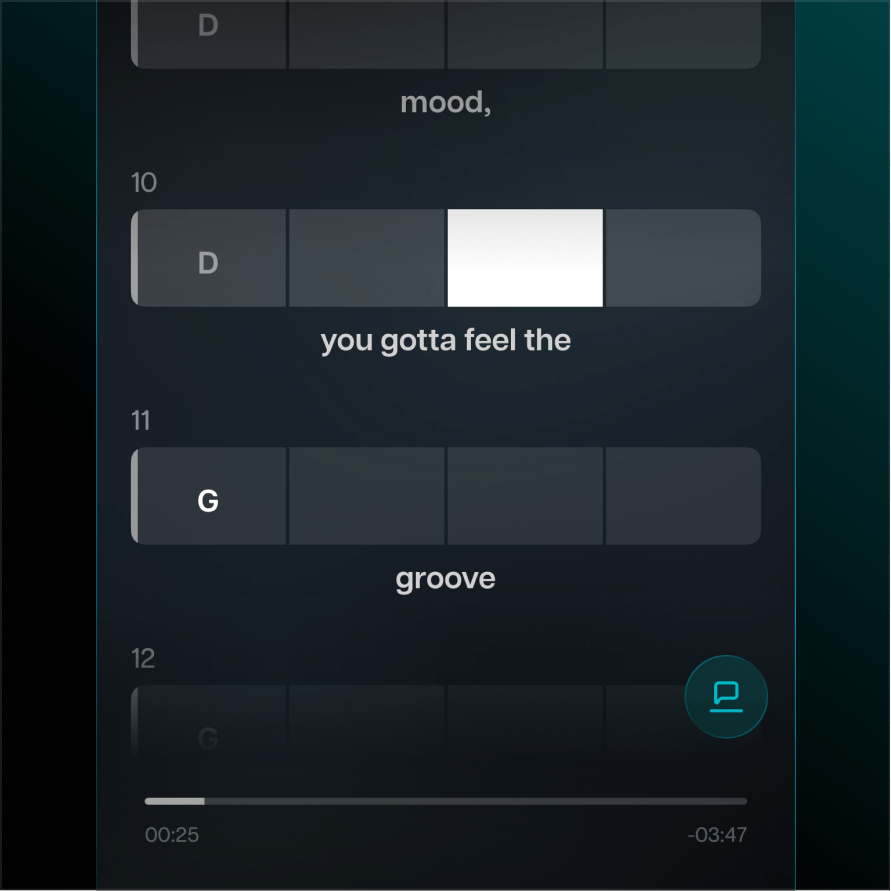
Chords appear in time with the song, in whatever key you've set, so that you don’t have to keep pausing to figure out what the rest of the band is playing.
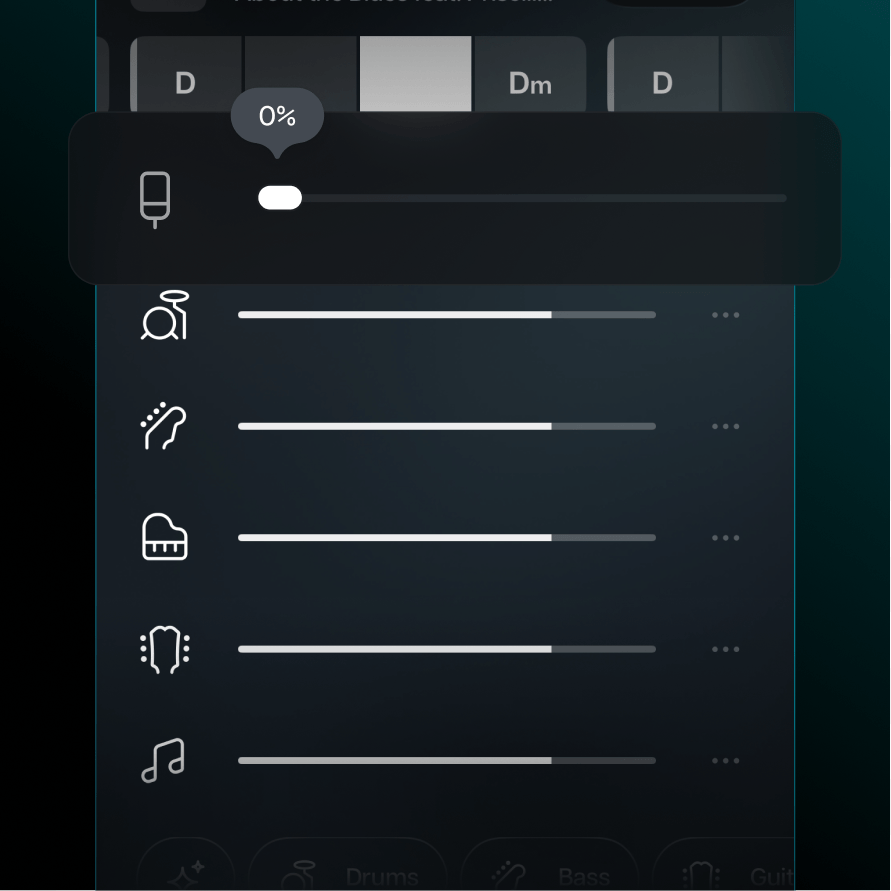
Vocal removal is just one track within a full mixer. Mute, solo, and control the volume of every part of the track you separate.
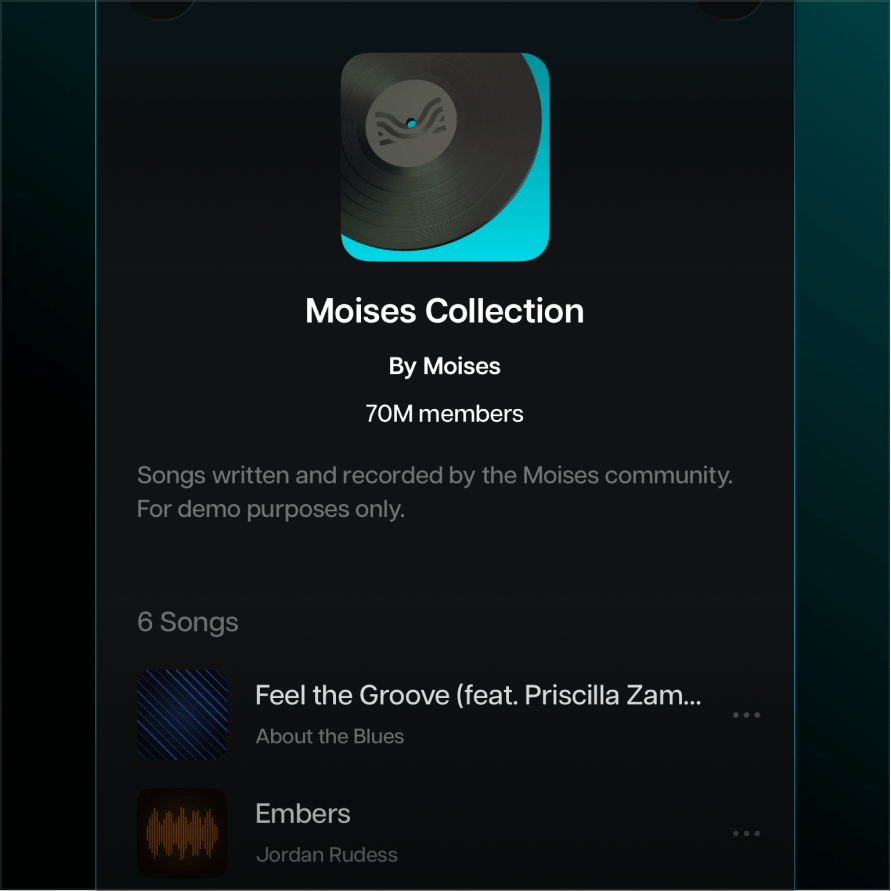
Separate a song once and it's there on your phone, your laptop, and in the browser. Build setlists for rehearsal and pull them up at the gig.

“I’ve been using Moises in my own creative process for years. It’s here to help artists learn, explore, and bring their ideas to life.”

“It's a product that I've waited for my whole life. It would have made my life a lot easier if Moises had been around for 15, 10 years.”

“I find myself using Moises in creative ways, generating stems and making bass parts, while I'm trying to write a song in its infant stage.”
Upload your first song free and hear how it sounds without the vocals.
There are several factors to consider when choosing a vocal remover. One of the most important is sound quality. Moises is known for its high-quality stem separation and is trusted by Grammy-winning artists, professional studios, and over 80 million musicians worldwide.
Simply upload your audio file to Moises and lower the vocal stem volume to zero. That’s it. If you prefer a visual walkthrough, you can follow along here.
Yes. Moises allows you to upload video files, including MP4. You can import a video directly from your device and remove vocals just like you would with audio.
Moises supports a wide range of file types for both audio and video, including:
AUDIO:
- MP3
- AAC3
- AAC
- AIFC
- OGG
- WMA
- AIFF (aif)
- FLAC
- WAV
VIDEO:
- MP4
- M4V
- MOV
- MKV
- M4R
- M4A
- FLV
- MPEG (MPG)
- WEBM
Yes. Creating karaoke tracks and instrumentals is one of the most common uses for vocal removal. You can listen directly in Moises or download your files to use elsewhere.
Some level of quality change is expected with any vocal remover. The difference depends on the tool you use. Moises is designed to deliver high-quality stem separation and is trusted by Grammy-winning artists, professional studios, and over 80 million musicians worldwide.
Yes, Moises has a web-only platform that allows you to remove vocals online directly from your internet browser without downloading any new software.
Yes. Free users can separate a limited number of tracks per month. Paid plans unlock additional features and higher usage limits.