Virtual Instruments
Synths and samplers, grouped by sound
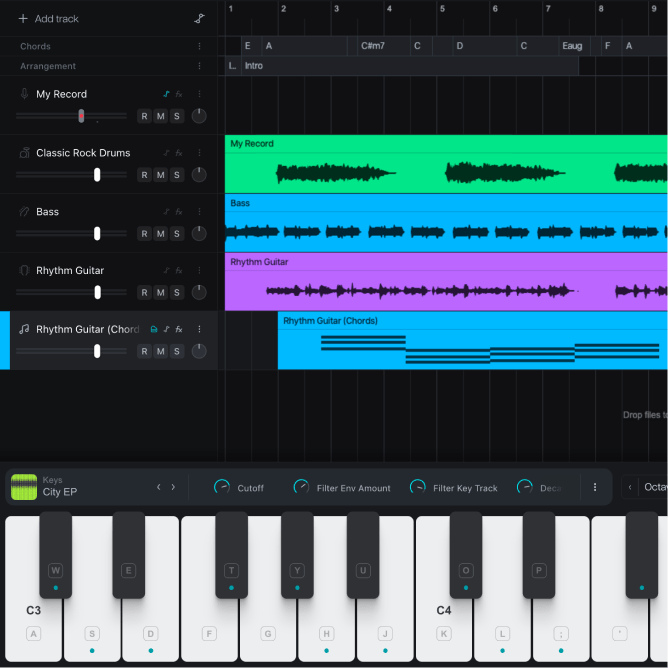
Browse 600+ instruments by category, from keys, bass, and pads to orchestral, percussion, and layered synths. Tweak each one with its macro knobs, then save your version to use again.
Introducing Moises Studio: The simplest way to make music togetherIntroducing Moises Studio: The simplest way to make music together
Make the part yours
Record MIDI from a controller or your computer keyboard, clean up timing and velocity in the piano roll, and choose from 600+ built-in instruments. Bring your own VSTs and sound libraries, too.
How it works
Plug in a MIDI controller or play on your computer keyboard. Pick a key and scale, and the keyboard marks the notes that fit. Hit record to capture the part, or turn an idea you already recorded into MIDI notes on a new track.
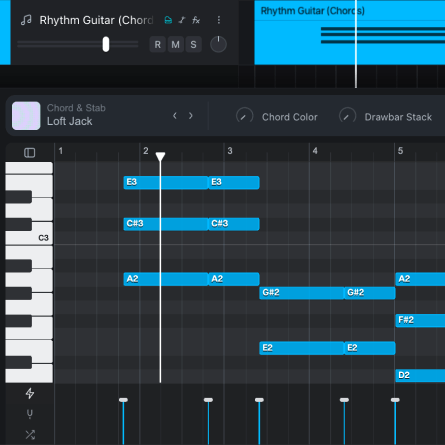
Drag wrong notes where they belong. Quantize to tighten the timing, set the grid to fit the part, and adjust velocity note by note to shape the dynamics. Anyone in the project sees your edits as you make them.
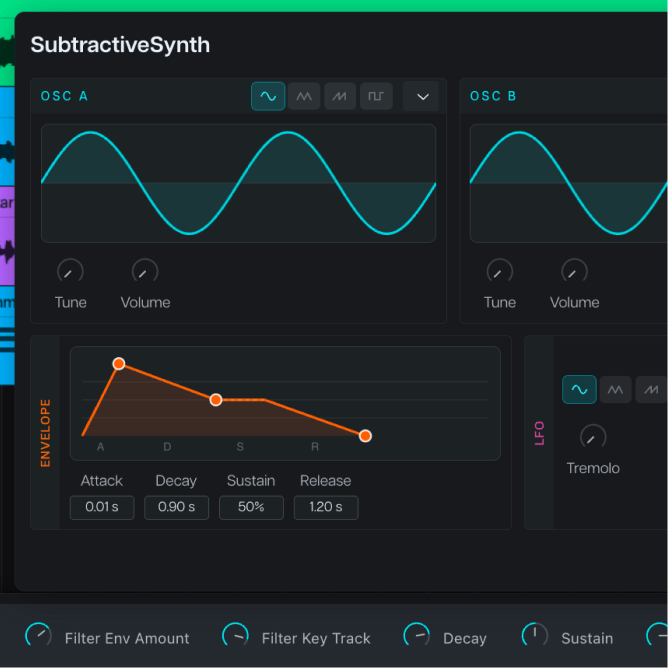
Change the instrument to hear your part with a different sound. Try it on grand piano, a synth pad, or strings. Then use each instrument's macro controls to add interest, movement, and dynamics.
The built-in instruments and effects run right in your browser, with nothing to install. When the library doesn't have the sound you're looking for, ask Moi.
Browse 600+ instruments by category, from keys, bass, and pads to orchestral, percussion, and layered synths. Tweak each one with its macro knobs, then save your version to use again.
Compression, EQ, reverb, delay, chorus, saturation, and more, ready to drop on a track. Dial in guitar tones with Amp Modeler, or tighten a vocal with Voice Tuner.
Can't find the right instrument or effect? Tell Moi, the agentic co-producer built into Moises Studio, what it should sound like and the controls you want. It creates your unique sound in minutes.
Why Moises
Write MIDI where the rest of your song lives, using the plugins and sound libraries you already have.
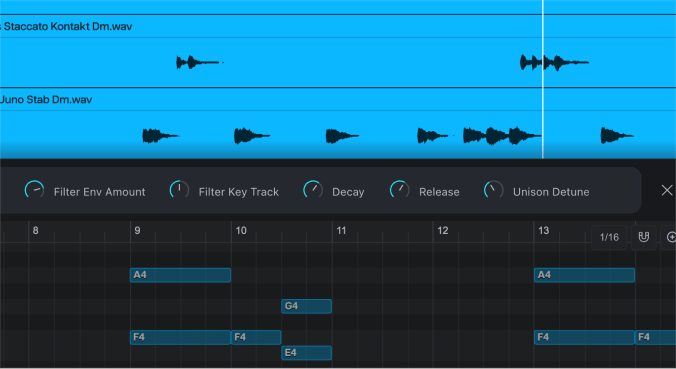
MIDI, audio, separated stems, and chord markers share one timeline, so the chords sit right above the part you're writing.
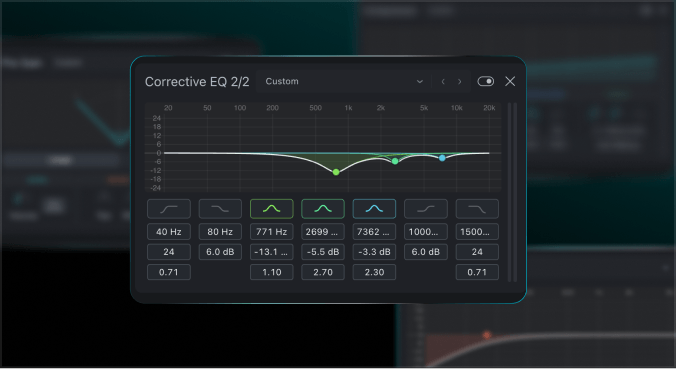
Open the Moises Studio desktop app and load your third-party VST instruments and effects right on your tracks.
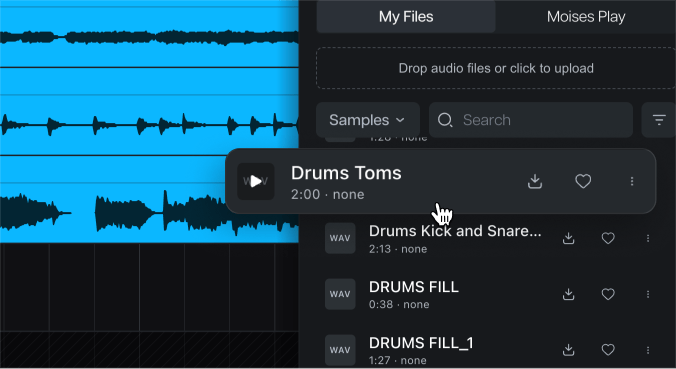
Drop SF2, SF3, SFZ, NAM, or ZIP files into your library, and they're ready to use in your projects.
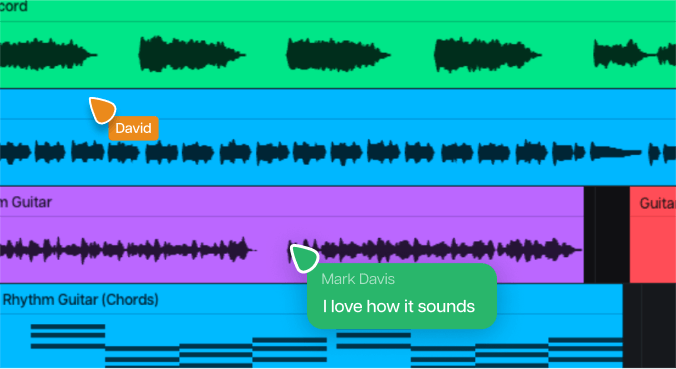
Studio renders your plugin tracks automatically, so collaborators hear them without owning the plugin. No bouncing required.

“I’ve been using Moises in my own creative process for years. It’s here to help artists learn, explore, and bring their ideas to life.”

“It's a product that I've waited for my whole life. It would have made my life a lot easier if Moises had been around for 15, 10 years.”

“I find myself using Moises in creative ways, generating stems and making bass parts, while I'm trying to write a song in its infant stage.”
Yes. You can convert an audio recording into editable MIDI notes on a new track with audio-to-MIDI conversion. Just right-click on the track in your timeline and select “Convert to MIDI.”
Yes, you can use your own third-party plugins with the Moises Studio desktop app for Mac or Windows.
No. You can also play notes on your computer keyboard to record virtual instruments. Pick a key and scale, and the keyboard marks the notes that fit.
Yes, the Moises Studio’s piano roll can run right in your browser, with nothing to install for the built-in instruments and effects.