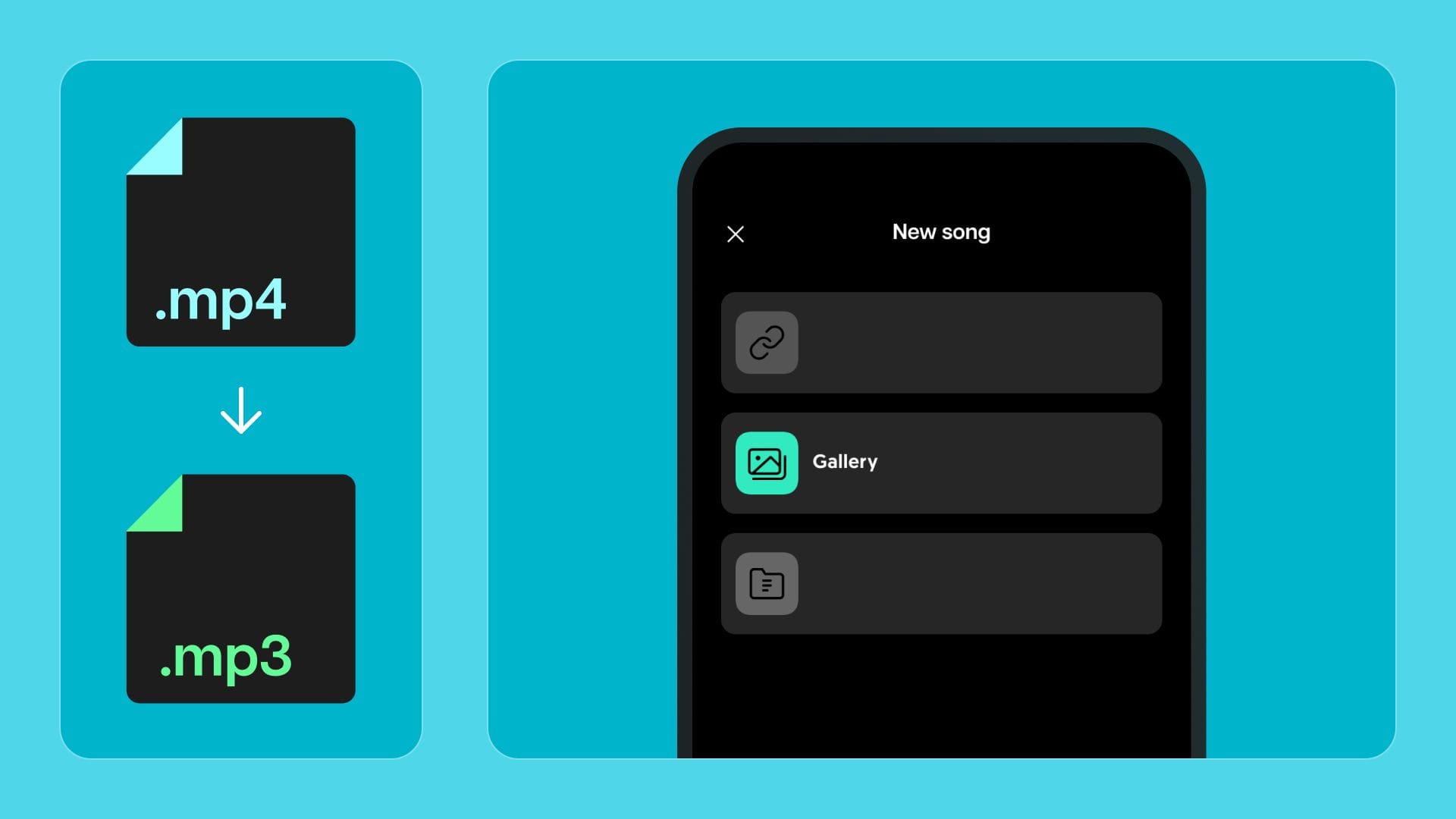
As multimedia content creation experiences substantial growth, strategies like 'how to extract audio from video' have become immensely popular. This technique holds substantial benefits, enriching podcasts, generating karaoke tunes, and fostering better video analysis.
It was with this in mind that we created this tutorial. This article will guide you through simple steps to extract audio from video using Moises.
How to Extract Audio From Video with Moises App
Before you get started, please note that Moises supports the following formats: MP3, WAV, FLAC, M4A, MP4, MOV, and WMA. If your video file is in a different format, you must convert it to one of these supported formats.
To extract audio from a video on a mobile device, you must open the Moises App on your iOS or Android smartphone.
- Click on the “+” icon at the bottom of the screen.
- Choose any of the options “Cloud storage”, “Camera Roll”, or “Files App”.
- Choose the video file you want to extract audio from.
- Choose the audio separation type that best suits your need and click “Submit”. *Please note that more options are available for Premium memberships.
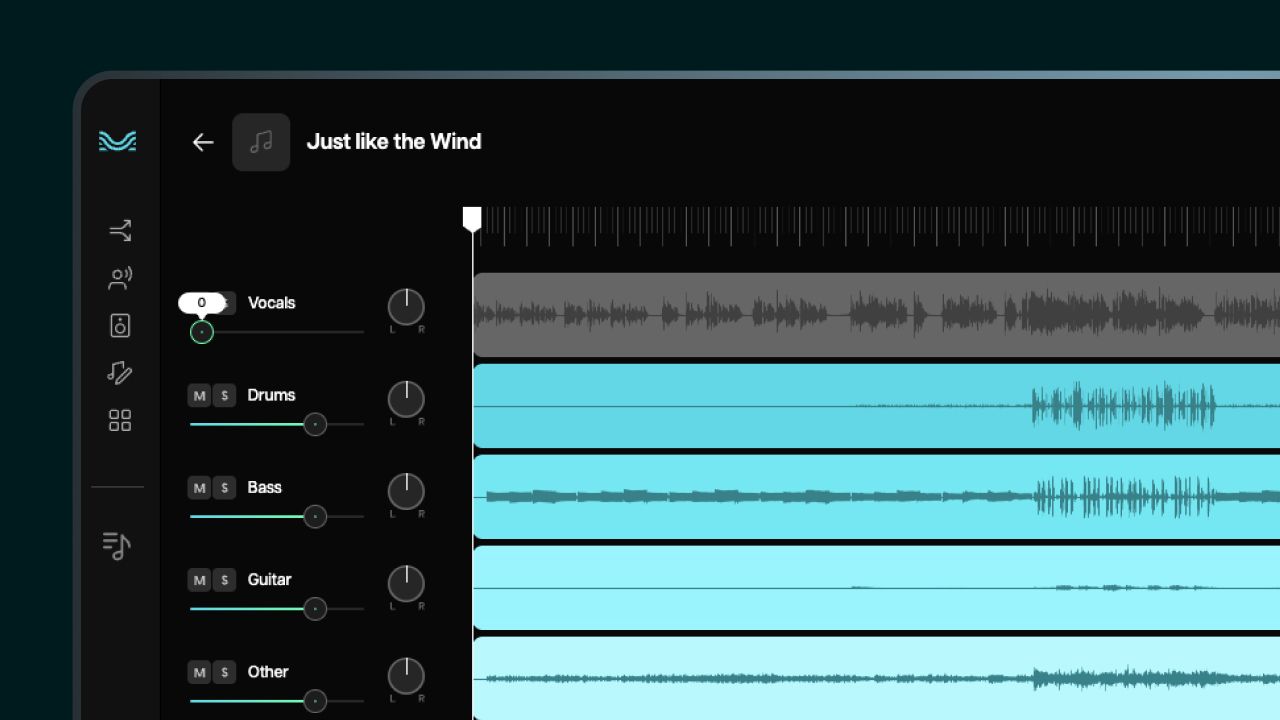
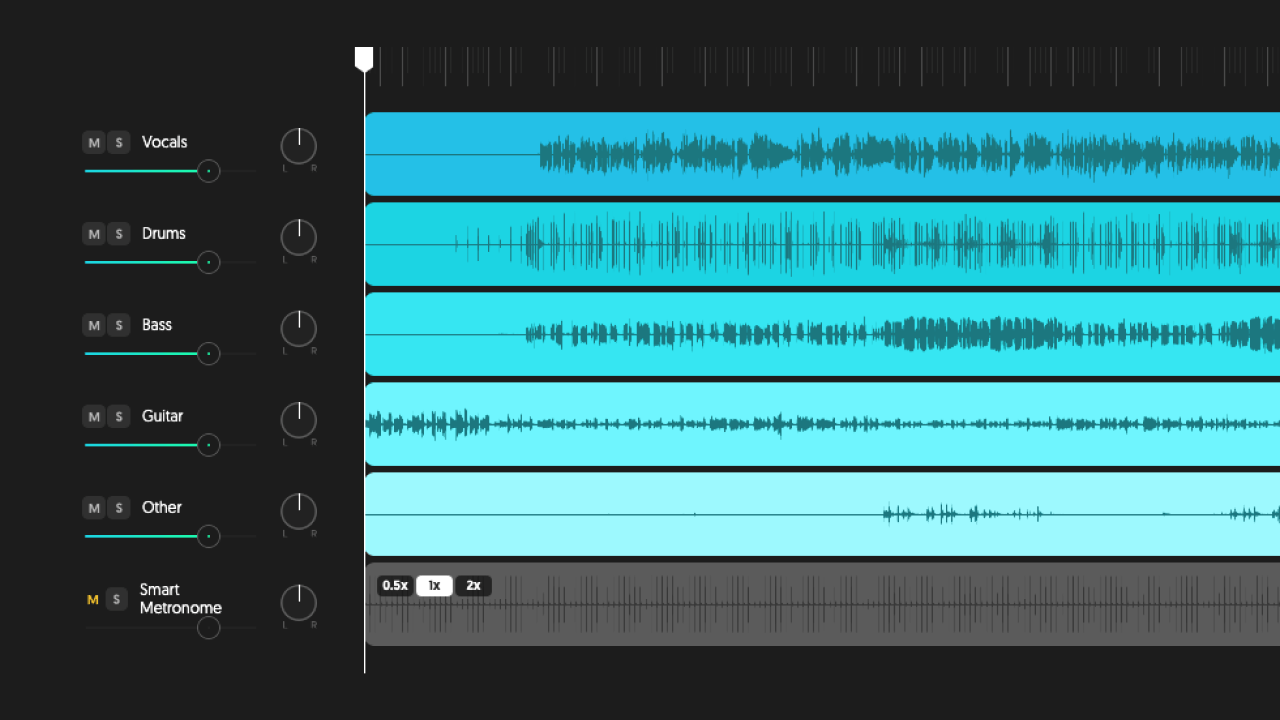
- After the file processes, you can access the audio from the video in Moises! Easy-peasy, right?
How to Extract Audio From Video with Moises Web App
If you prefer a web-based solution, don’t worry! Moises makes it as simple.
- Open Moises Web App in your web browser. Moises operates best using Chrome but any browser should work.
- Click on the blue “Upload” button or the “+ Add” button under “Start adding songs”.
- Select “Separate track”.
- Upload the file you want to extract the audio from in "Local Files" or "Cloud Storage", then click on "Next".
- Choose the audio separation type that best suits your need and click “Submit”. *Please note that more options are available for Premium memberships.
- After the file processes, you can access the audio from the video in Moises! Easy-peasy, right?
Audio extraction has always been more complex, but it can be incredibly simple thanks to the AI-powered tool Moises. Take advantage of this cutting-edge application and sign up today for a seamless audio editing experience.
Extracting audio from a video can serve many purposes, from innovative content creation to audio analysis in video files. With the features of Moises, this once complicated process is now a breeze. Now you can separate audio tracks, explore your creativity, and share your work with the world. So, go ahead, and harness the power of these tools to level up your multimedia creation game. Remember to share your experience with us!