Moises Tutorials

Moises Tips: Record and Share Performances with Video Recording

Discover how Video Recording in the Moises mobile app makes it simple to capture, sync audio, and share your performances with studio-quality sound.

Let’s be real. Recording your music on a phone usually sucks. Voice memos sound thin, setups with extra gear kill the vibe, and syncing audio and video after the fact is a nightmare. By the time you’re ready to post, the spark is already gone.

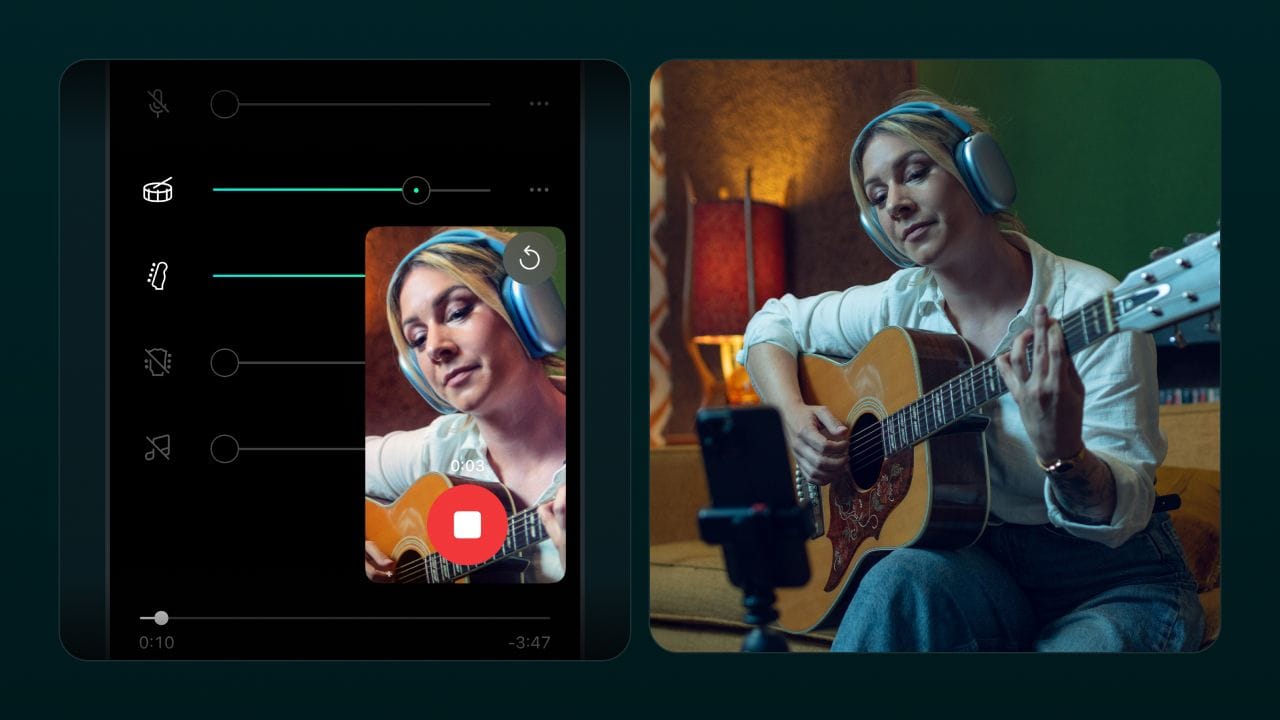
That’s why Video Recording in the Moises mobile app feels like a cheat code. Open the app, line up your shot, and hit record. You’ll get clean, studio-quality audio locked to your video in real time with no fixes and no wasted hours.

And here’s the kicker. You can record in two different ways, depending on your flow:

  • Record Over Track lets you pull a song from your Moises library, mute what you don’t need, and layer your part right on top. Perfect for covers, solos, or flipping a track into something new.
  • Record From Scratch gives you a blank slate so you can capture ideas, jam sessions, or rehearsals instantly with pro-level sound.

When you’re done, your take is ready to share. Post to TikTok, Instagram, YouTube, or send it straight to your collaborators. No bouncing between apps. No losing the moment. Just music, captured the way it deserves.

Think of this page as your practice room for Video Recording. Below, you’ll find Moises Tips tutorials showing you exactly how to use it so you can start turning raw ideas into content that actually sounds good.

How to Use Video Recording to Make Pro-Level Videos for Social

Learn how to capture performances with studio-quality sound and video right from your phone. This tutorial shows how to record over tracks or start fresh, adjust your mix, and share directly to social without extra gear or messy setups.

How to use Record Over Track and Record From Scratch

Learn how to capture your performances two ways with Moises. Record over any song in your library by muting vocals, adjusting stems, and layering your own voice or instrument. Or start from scratch to record clean video and audio in seconds, perfect for new ideas, jam sessions, and creating content on the fly.

Malcolm Perry

Malcolm is a Los Angeles–based copywriter with over 7 years of experience. He’s also a music producer and songwriter, having worked with major artists across genres. When he’s not crafting copy or producing tracks, you’ll find him experimenting in the kitchen as an avid chef and foodie, creating food content, or out on the golf course.

You may also like to read

Moises Tips: Getting Started with AI Studio

AI Studio is now available for all Moises users. Check out these tutorials and turn your musical ideas into full tracks today.

How to Remove Vocals from a Song: In-Depth Guide

There are several reasons why you might want to remove vocals from a song – whether it's to create a karaoke track, remix, or isolate the background music from a video. Vocal removal can also be a great way to analyze and learn about sound design to evolve your music production skills. Read on to discover how Moises’ AI Audio Separation can teach you how to remove vocals from a song in just a few minutes!

Amped Up: How to Record Guitar on PC

Are you looking to add electric guitar to your next song? Learn how to achieve professional quality sound with these tips. From microphone and DI techniques, plugins and amp simulators, to the many features of the Moises app - we’ve got the essential guide on how to record guitar in your home studio.

How to Record Acoustic Guitar: Tips for Professional Quality Sound

Unlock the secrets of getting a clear and balanced acoustic guitar sound on your next recording.

How to Create Backing Tracks: Everything You Need to Know

Knowing how to create backing tracks can be incredibly handy for musicians of all kinds. This includes singers, guitarists, bassists, drummers, and pianists. Read this content for insights on the topic and find out why Moises is the ultimate shortcut for making your own musical backdrops!

How to use an Audio Interface: Your Guide for DAW recording

In this comprehensive guide on how to use an audio interface, we break down the intricate setup, from connecting devices to optimizing sound settings. Smoothly transition from plugging into crafting professional-quality tracks. Read to learn more!